
While .NET code can be integrated into a Standard Logic App workflow via Visual Studio Code, an alternative option is using C# scripts. This lets you take advantage of a built-in action that allows for developing and running inline code. Inline code is an improvement on past solutions because it allows for development entirely in the portal, rather than requiring use of a separate IDE.
Implementing inline code in a workflow uses the “Execute C# script code” action. This action already contains a basic outline when added to the workflow. In the basic outline are examples of how to access trigger or previous action outputs and how to log to Application Insights. The “Run” method is the method called when the script is executed.
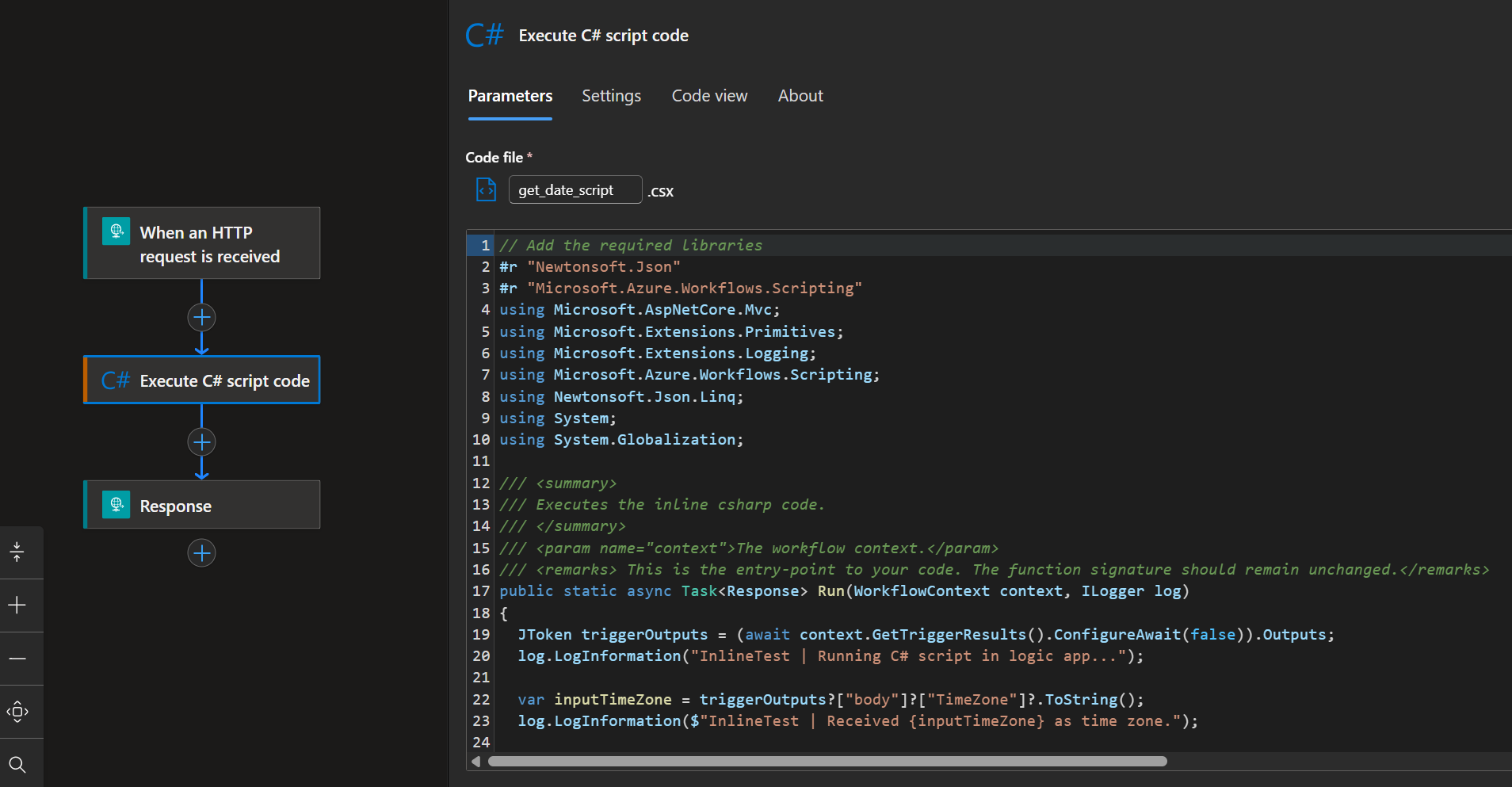
C# scripts are in-process, without namespace and class wrappers. They are compiled when an instance is initialized, so in the context of a workflow, this means when the workflow is triggered. A number of assemblies are already included by the Azure hosting environment. Others can be referenced at the beginning of the script. NuGet packages can also be included using a “function.proj” file, located at the root of the workflow folder. You can also reference other script files that have been included at the same location.
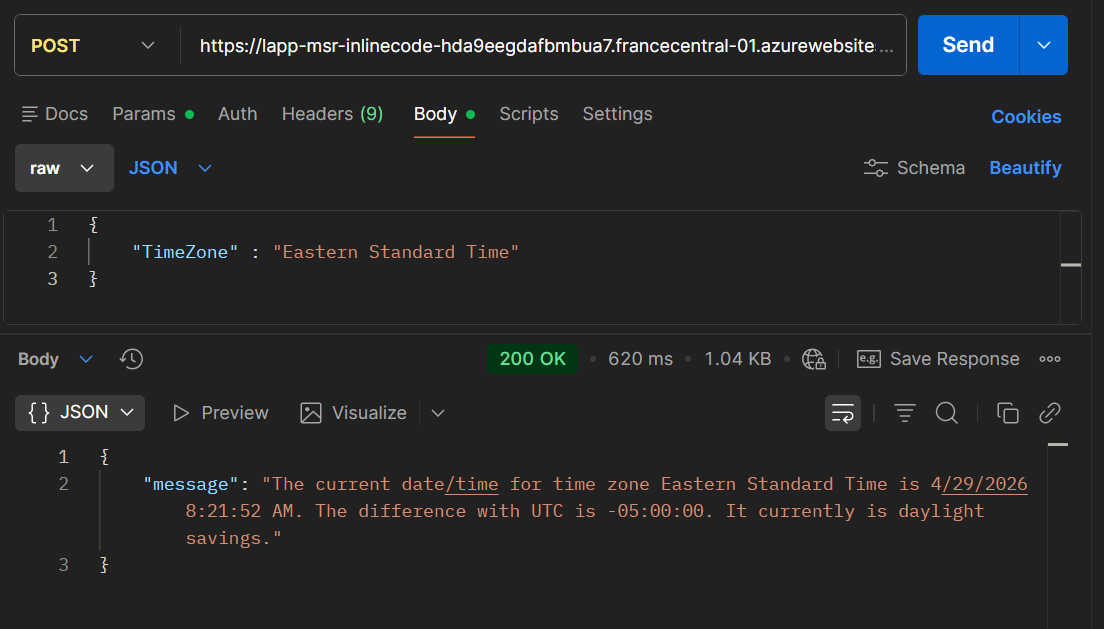
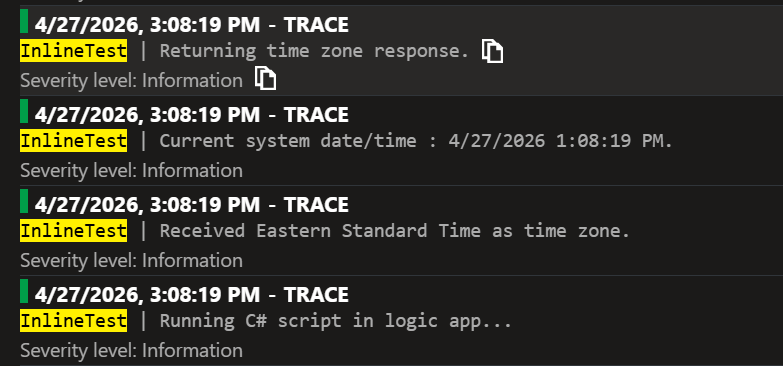
Just like in regular .NET code, traces can be logged directly to Application Insights using the ILogger class. These can be used to log errors, intermediate steps in processing, or other information that can help to debug what occurs when the script is called. Similarly, you can create custom metrics with the logger.
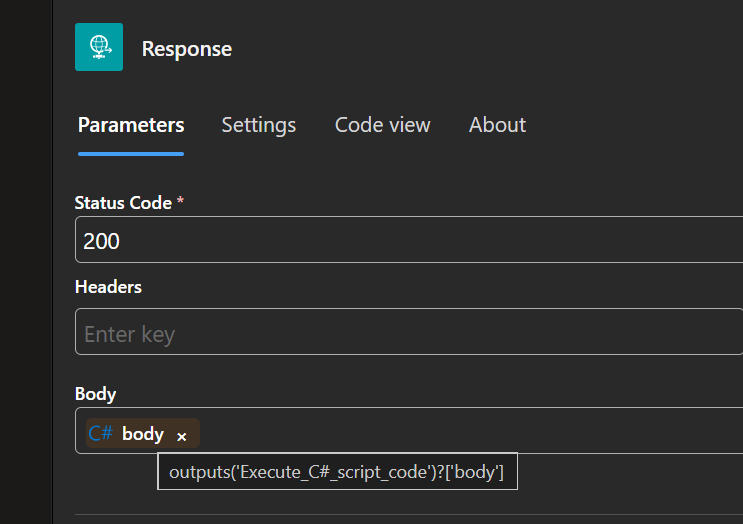
The action itself can access outputs from your trigger or previous actions, referenced by name. Whatever data you choose to return from your function becomes available to actions that follow it. The output is in the action’s “body” property, which can be referenced with workflow expressions.
In order to deploy via classic CI/CD or from an IDE, you need to have the actual script file. The script is not integrated directly into the workflow code, just referenced as an external script. Development from the designer simply saves the script to the workflow root folder.
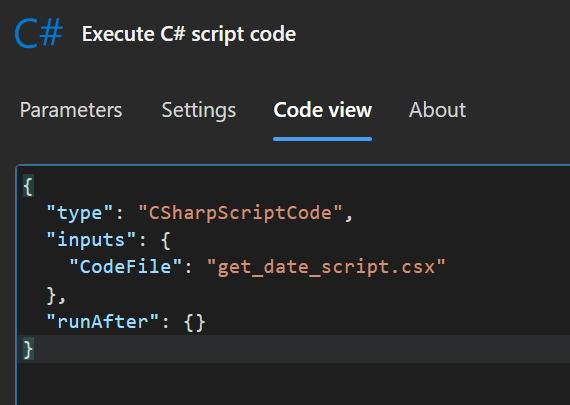
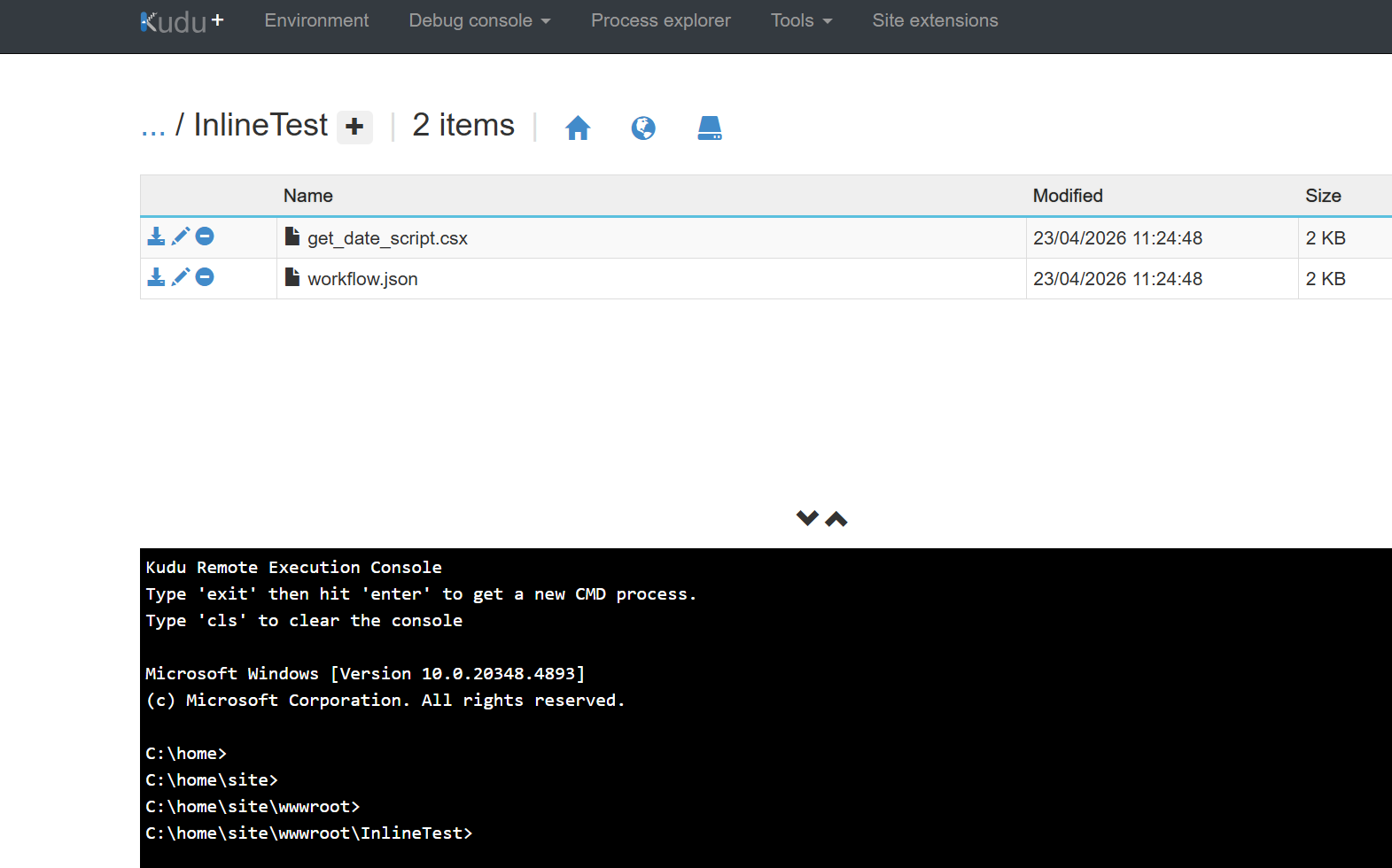
This file can be reached using the Kudu+ console in the advanced development tools. In the debug console, navigate to the “site/wwroot” path then to the workflow’s folder to find the script file and the workflow file. Once downloaded, it can be deployed along with the workflow and any other external scripts that are referenced by the workflow or by the script itself.
A major advantage of inline code for a standard Logic App is that development can be done either in the portal, via an IDE, or a combination of both. It allows for more freedom in workflow development because of its use of C# scripts. Because of this, there is also no need for an additional app service.
However there are limitations that come with reliance on scripts. First of all, there is no error checking during development in the portal. Errors are caught when the workflow is triggered and the script is run. This is because of when the script is compiled.
In addition to the above, including NuGet packages or external scripts requires actions in the Kudu console or at deployment. The Designer does not allow direct access to add a “function.proj” file or other external scripts.
Finally, scripts are local to the workflow. This means any scripts used by multiple workflows either need to be in a shared folder or copied to each workflow’s root folder.
The inline code action brings further flexibility to standard Logic Apps to integrate more complex data processing or transformation. It allows for development directly in the portal and can still be deployed via CI/CD. Additionally, the use of C# script allows for a slightly simplified C# coding experience.
